
Activate Analysis Client
|
Step 1 = Run NEM-Review Double-click the desktop icon – it looks like this: |
|||
|
Step 2 = gr-ID details You will be informed you don’t have an active licence, and need to activate. Click "Next" to start the process. 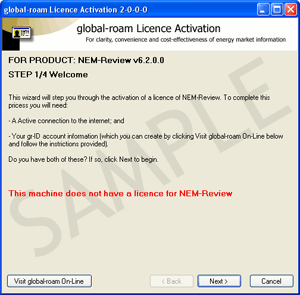 Input your usename & password. If you have forgotten what this is, you can retrieve it from our secure site here (by providing your email address). 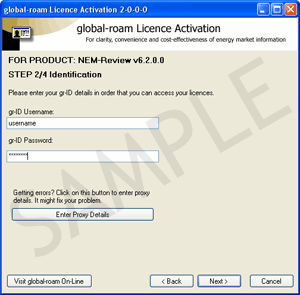 |
|||
|
Step 3 = Select your Trial licence To activate a trial, just select "Option 2" and then the Model of the software you want to trial.  If you’d like to understand the difference between Silver and Bronze, see here. |
OR |
Step 3 = Select your Purchased licence To activate a purchased licence, just select "Option 1" and then pick the required licence from the list. 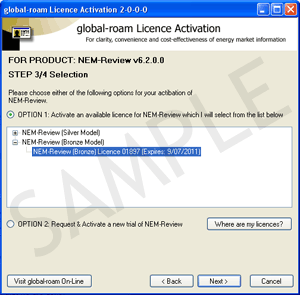 If you can’t find one of your licences in the list, click here to understand why you can’t see them. |
|
|
Step 4 = Enjoy Once you have selected your licence, NEM-Review will start, and ask you to configure your database settings. |
|||

Licence Conditions
By activating NEM-Review, you signify your acceptance with these NEM-Review licence conditions.
Next: Configure Analysis Client >> << Back: Install Analysis Client
 Need a hand?
Call +61 7 3368 4064